Verification Event
| Privileges | Description |
| Event Manager | A user will need the Event Manager privilege to create an manage verification events. This is a global privilege and it can be assigned in TEDS Online Administrator |
|
Supervisor Peer Trainer Training Coordinator |
In order to verify individuals on their skills a user with either the Supervisor, Peer Trainer, or Training Coordinator privilege is needed. Supervisors are users who are defined in an individuals work profile as his/her supervisor. Peer Trainer can be assigned as a global or hierarchical privilege in TEDS Online Administrator. Training Coordinator is a hierarchical privilege assigned in TEDS Online Administrator. |
|
Create an Event |
|
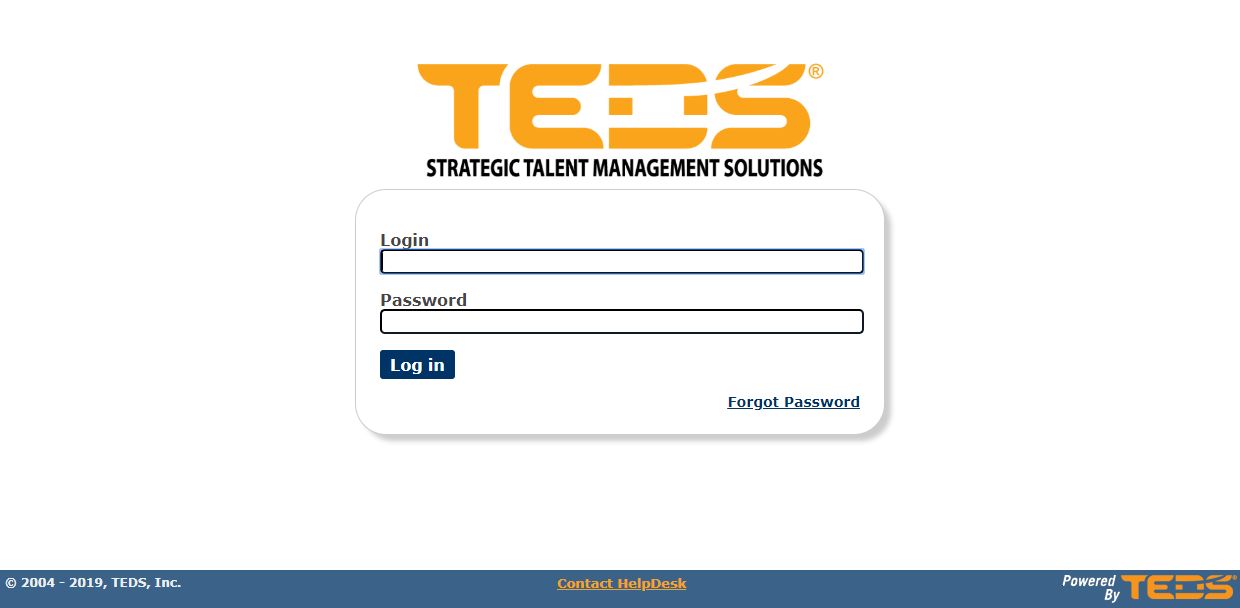
| Log in to the TEDS Verification Portal. |
|
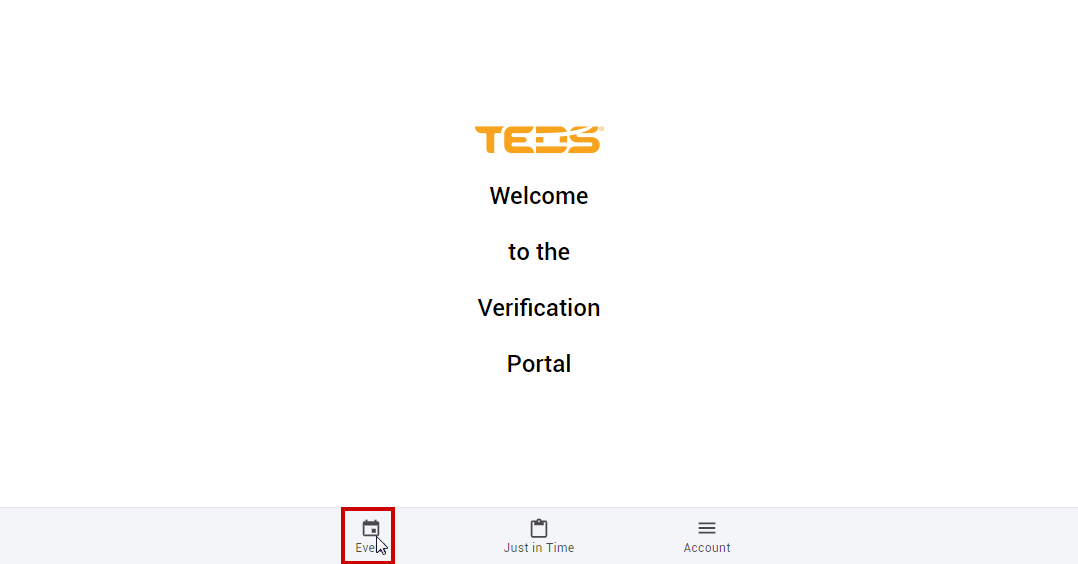
| Select to view the Event page. |
|
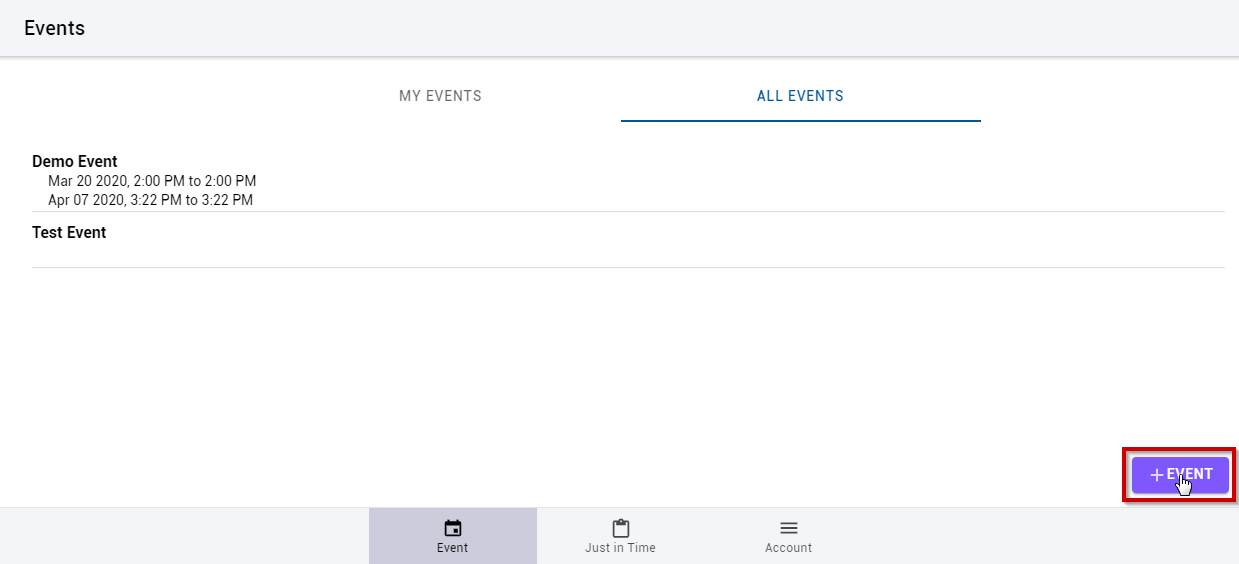
Select the  button. button. |
|
|
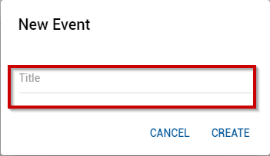
Enter a Title for the Event. |
|
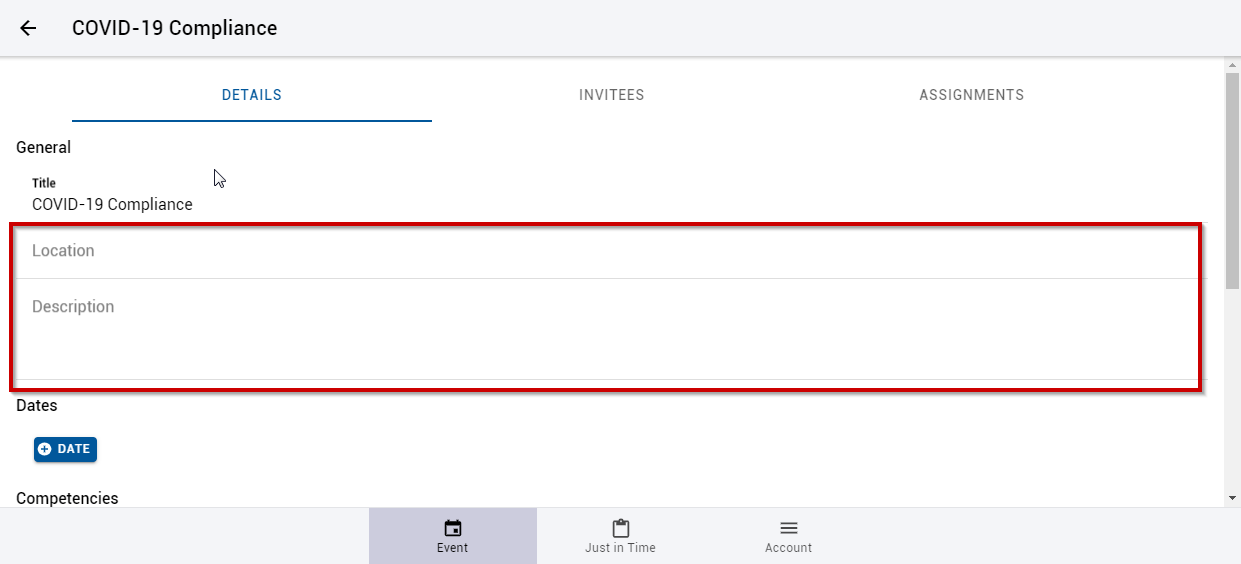
| Enter a Location and Description if desired. |
|
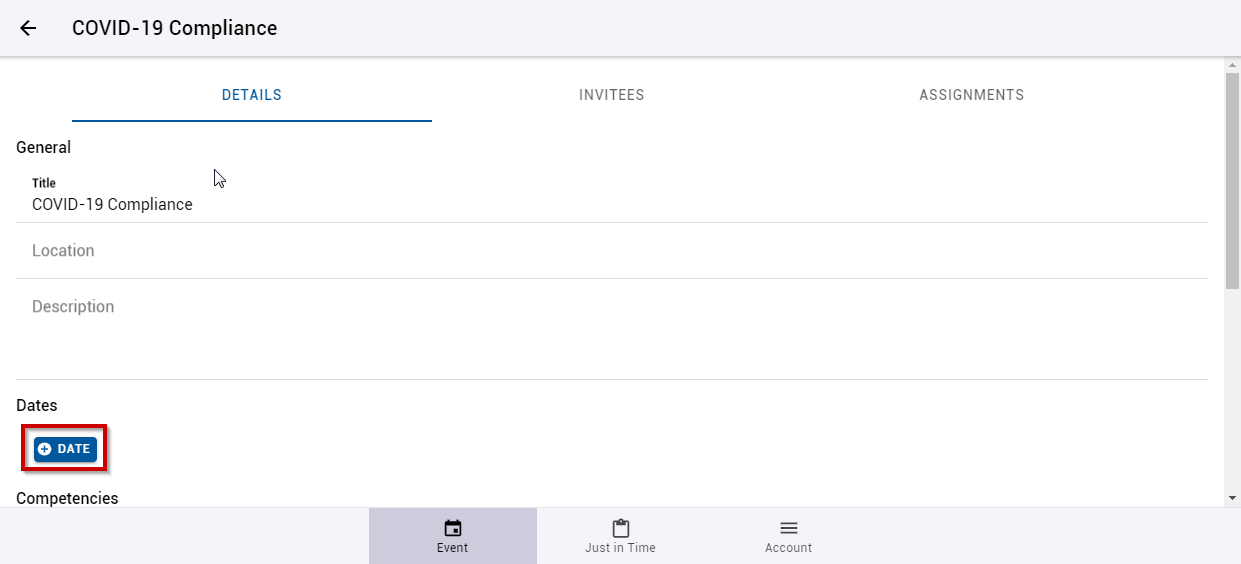
Select the  button. button. |
|
|
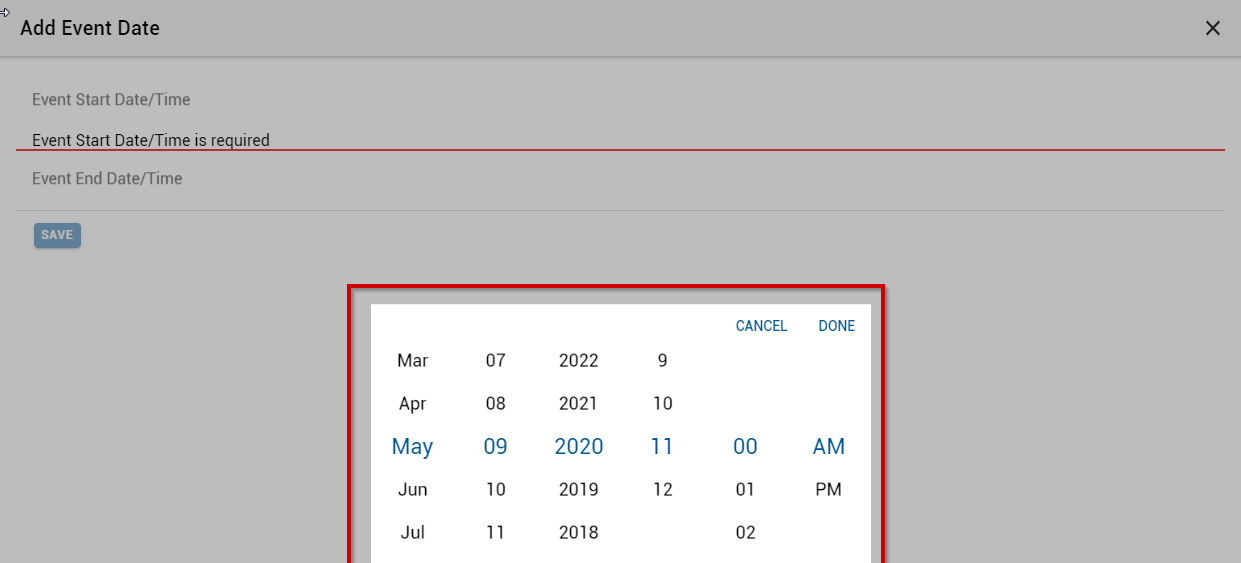
Select a Start and End date and time. |
|
Select the  button. button. |

|
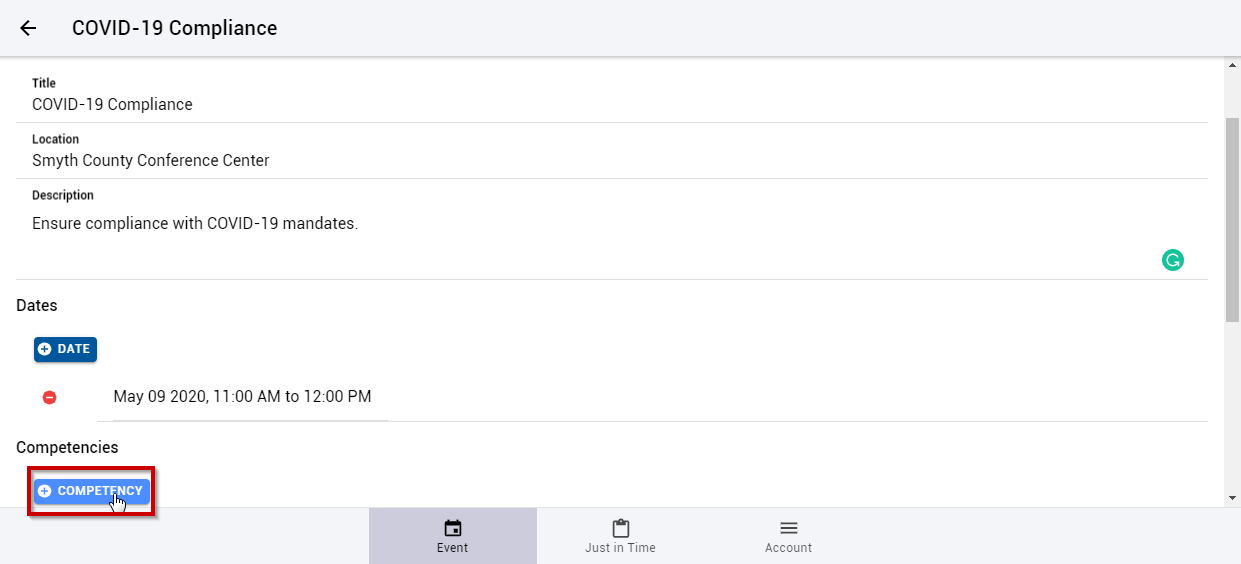
Select the  button. button. |
|
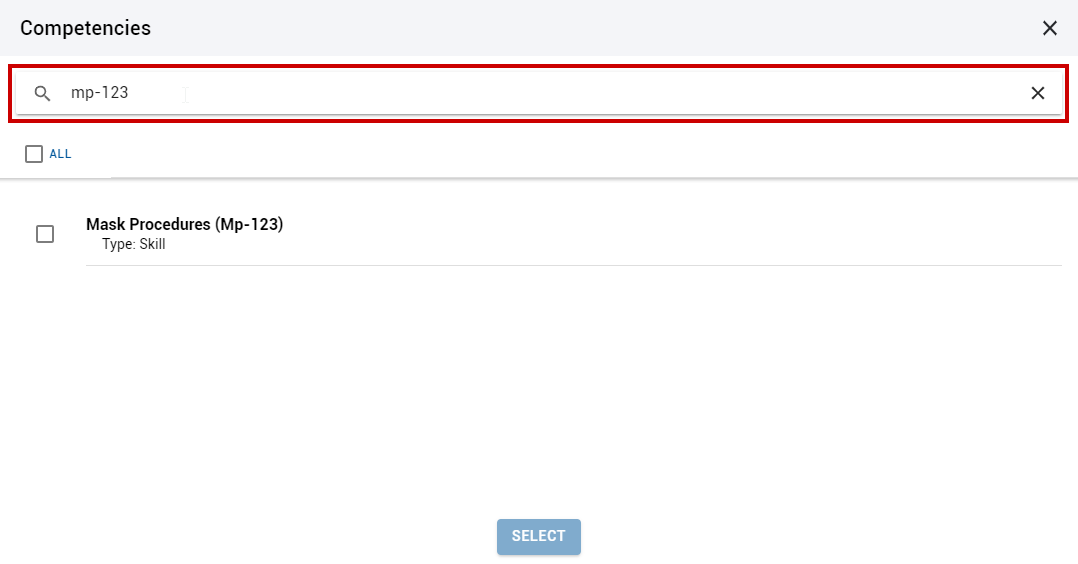
| Search for the desired competencies. |
|
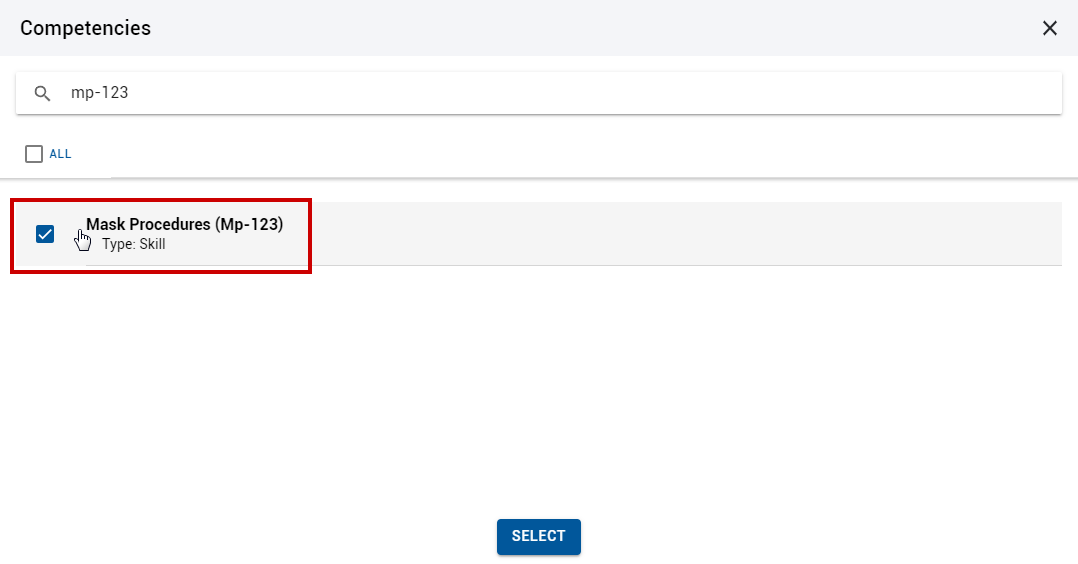
| Select the desired Competency. |
|
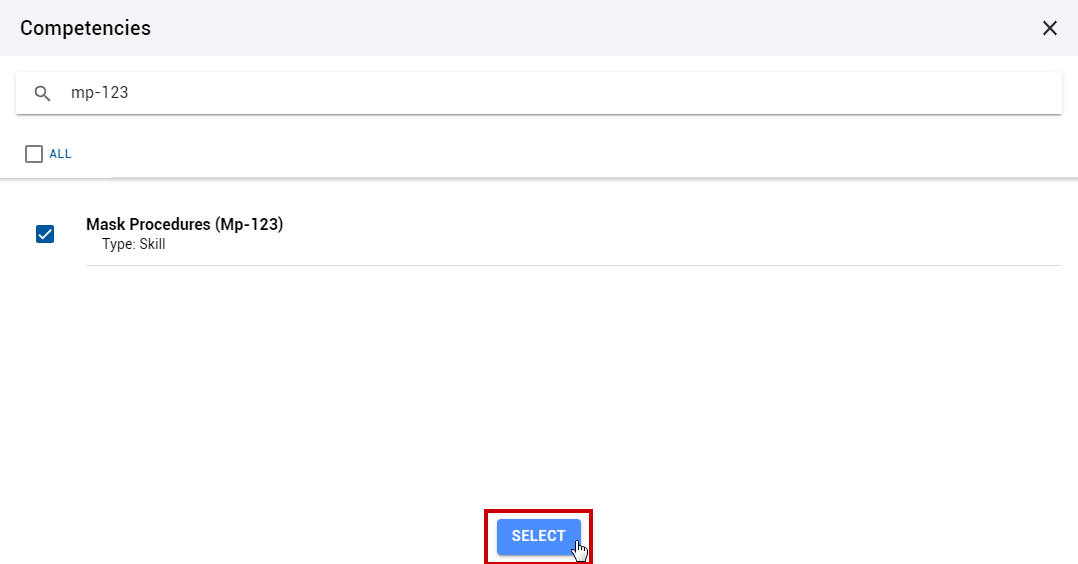
| Click the Select button to add the Competencies. |
|
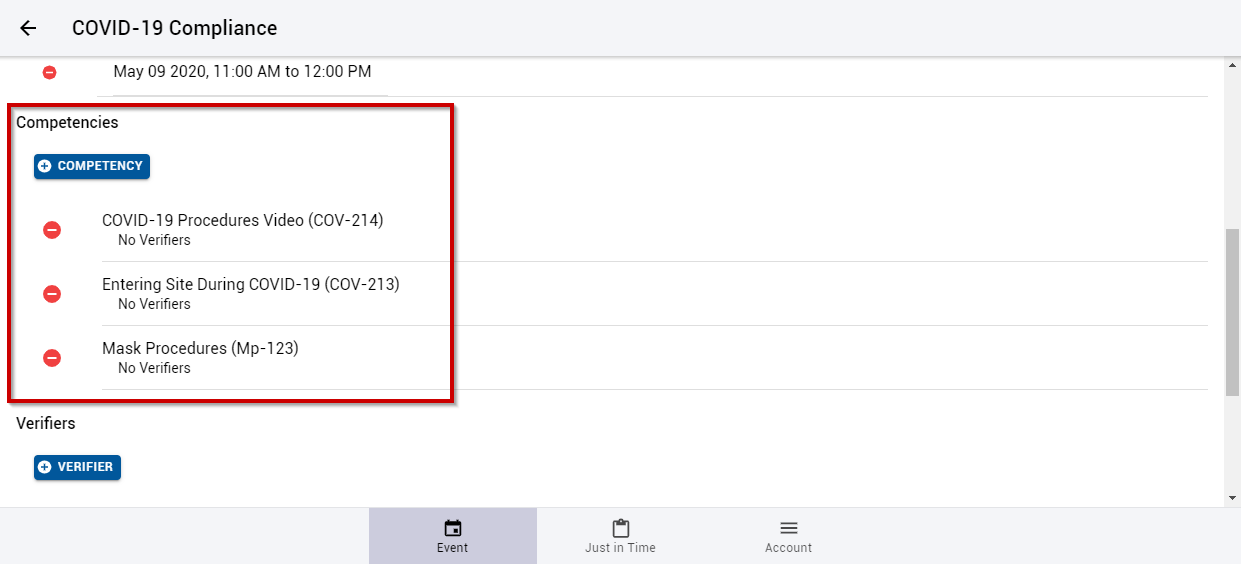
| The competencies are added to the Event Details. |
|
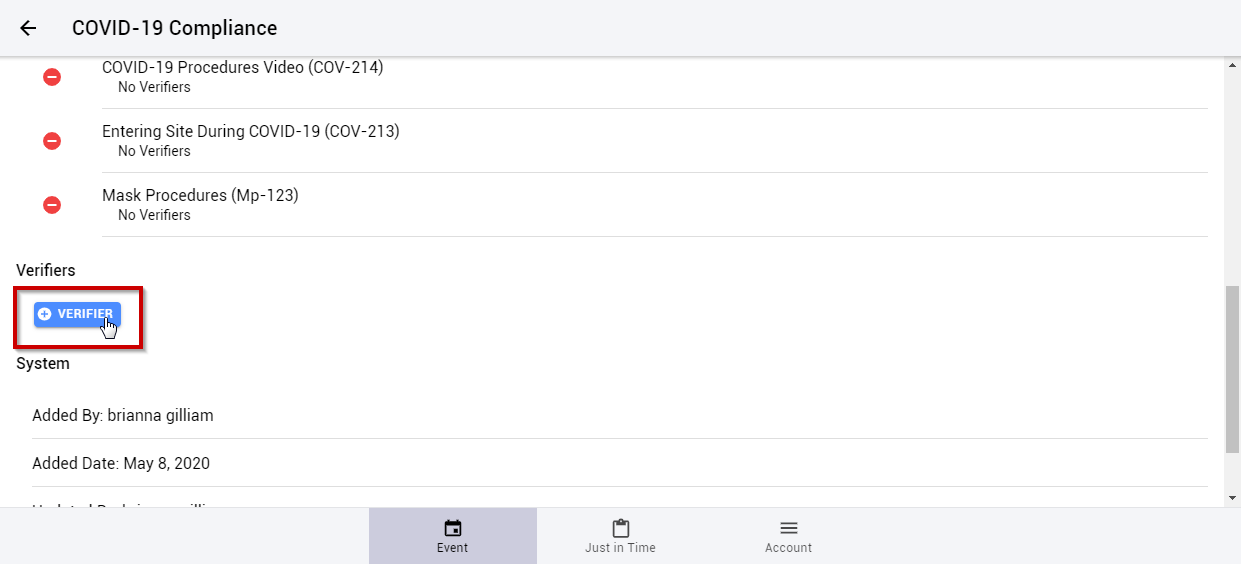
Select the  button. button. |
|
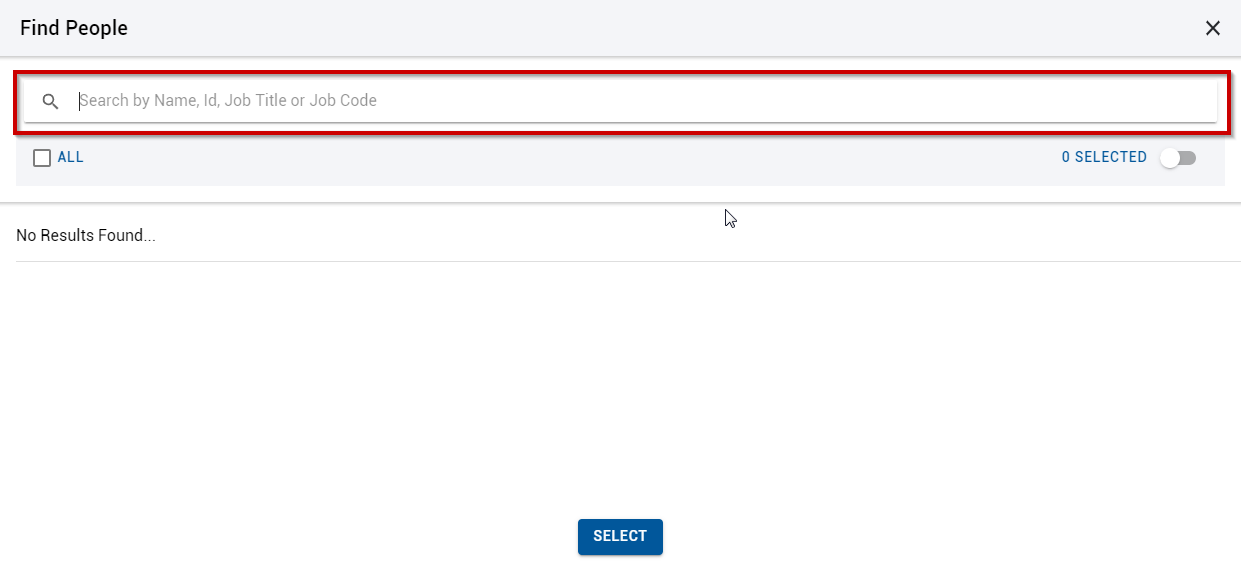
| Search for the desired individuals. |
|
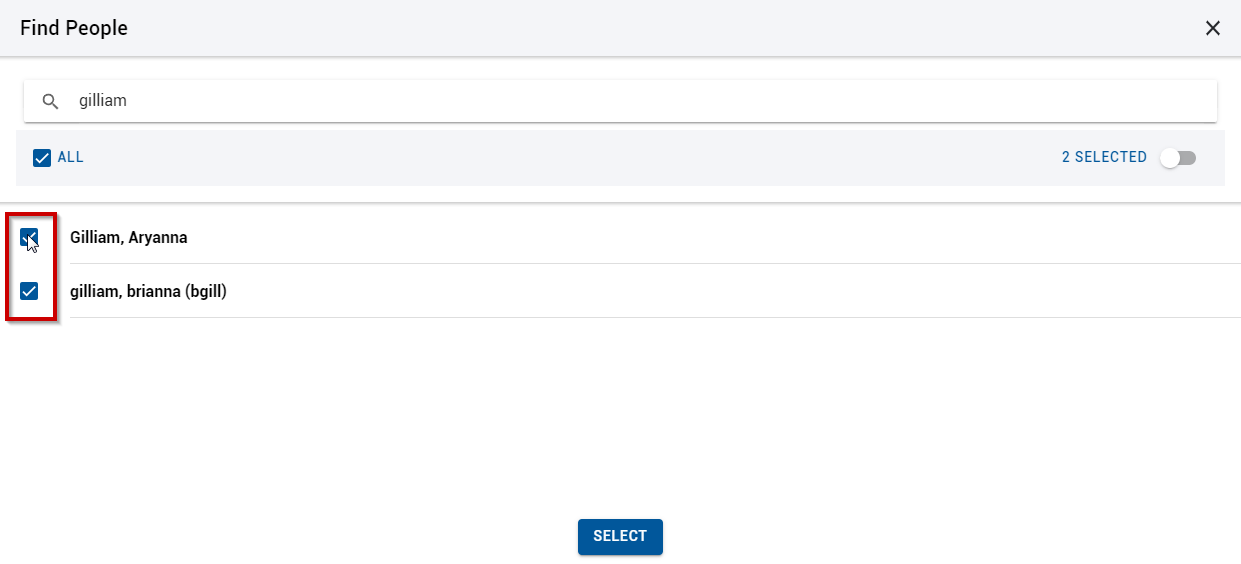
| Select the appropriate individuals. |
|
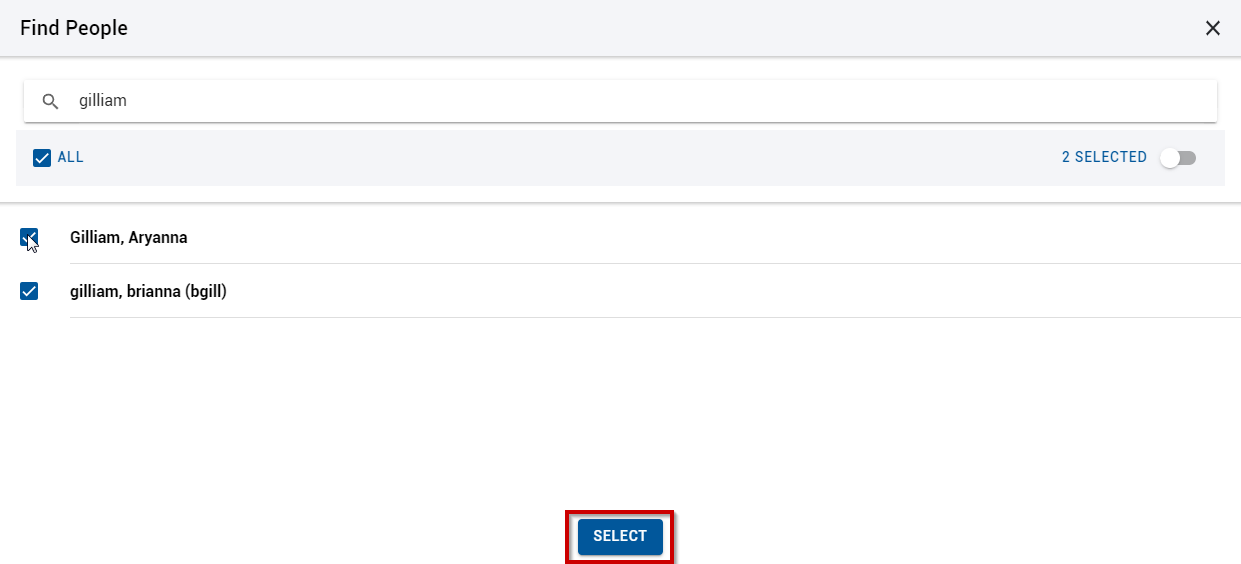
| Click the Select button. |
|
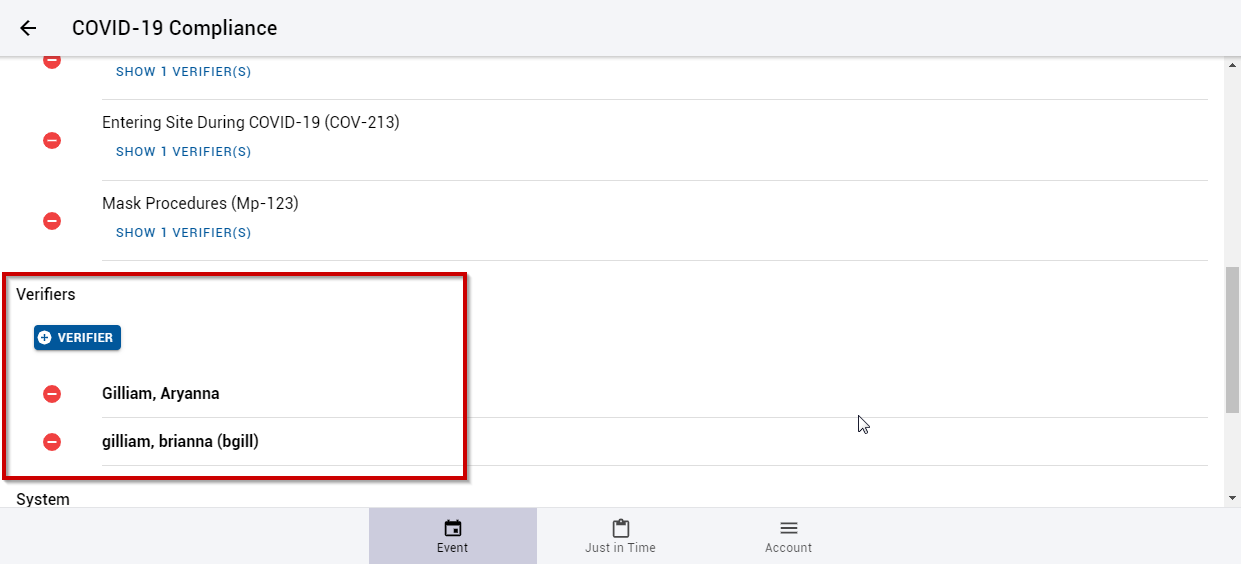
| The Verifiers appear on the Event Details. |
|
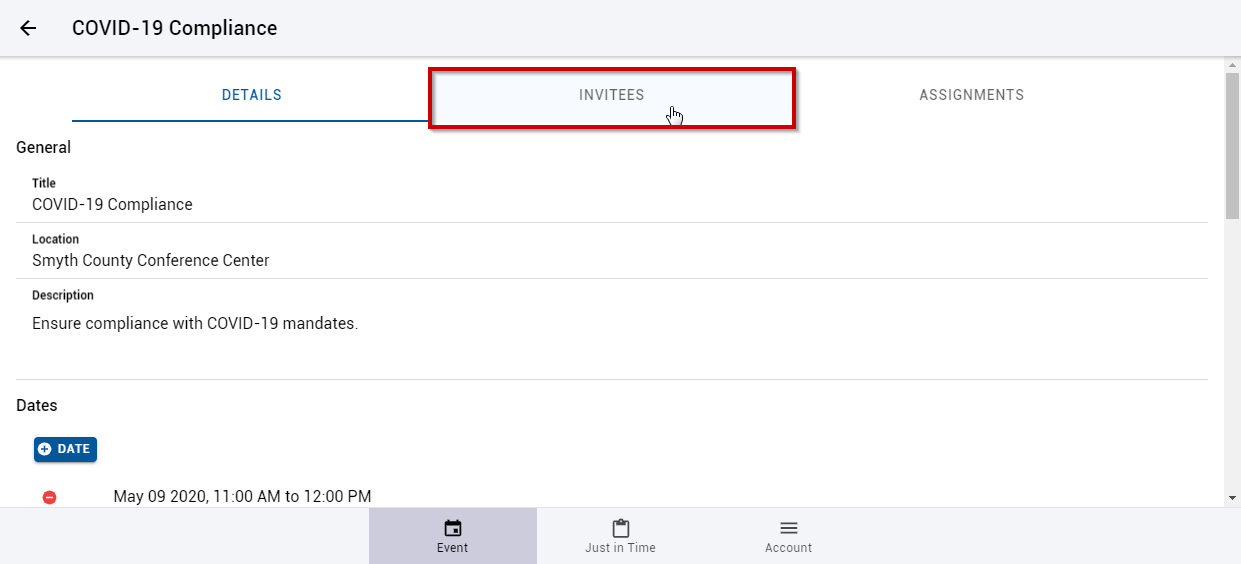
| Select the Invitees section. |
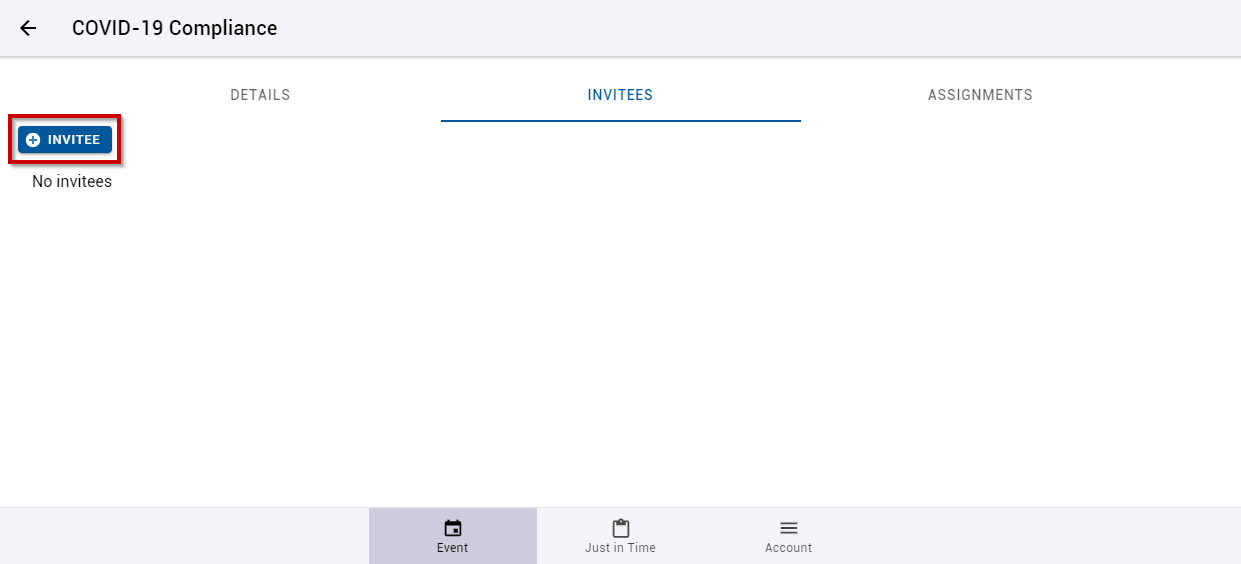
|
Select the  button. button. |
|
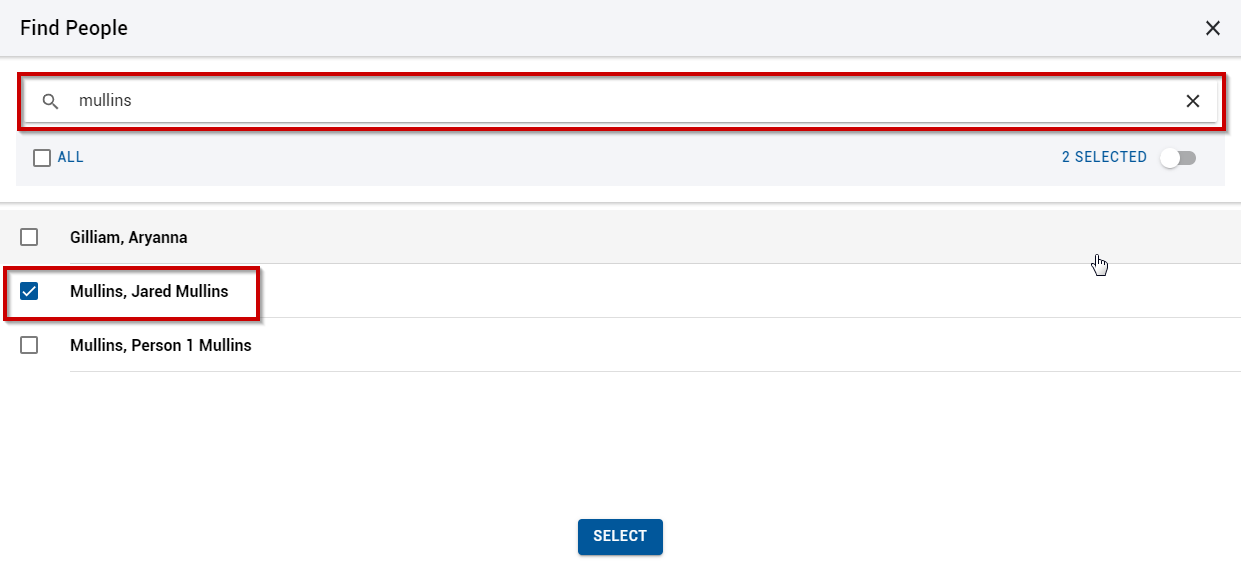
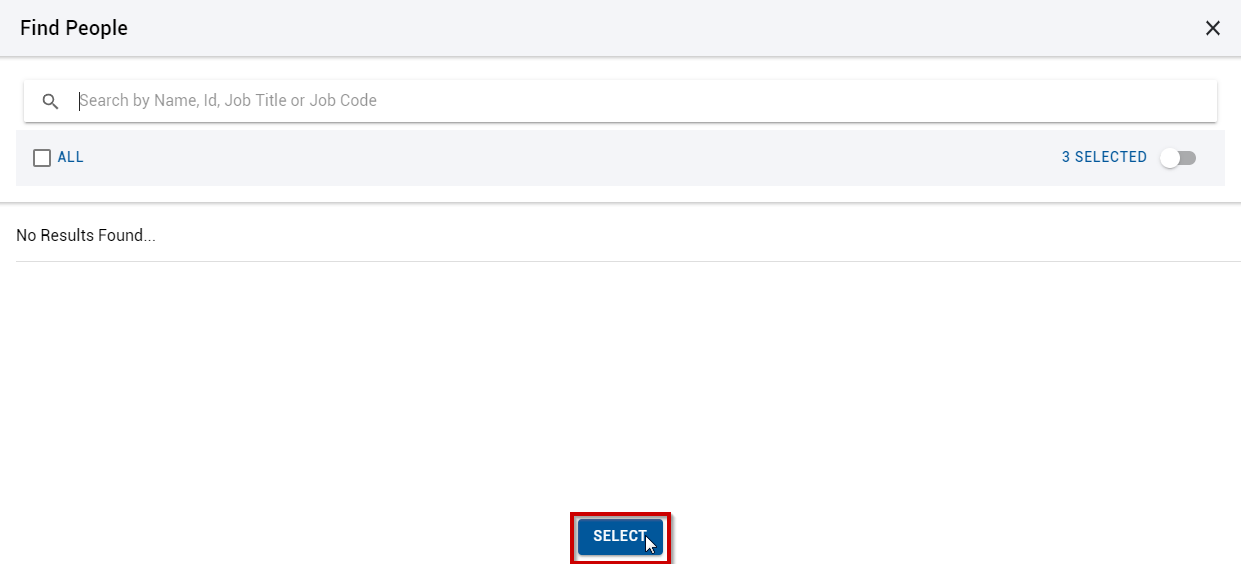
| Search for and select the people who will be invited to the event. |
|
| Click the Select button. |
|
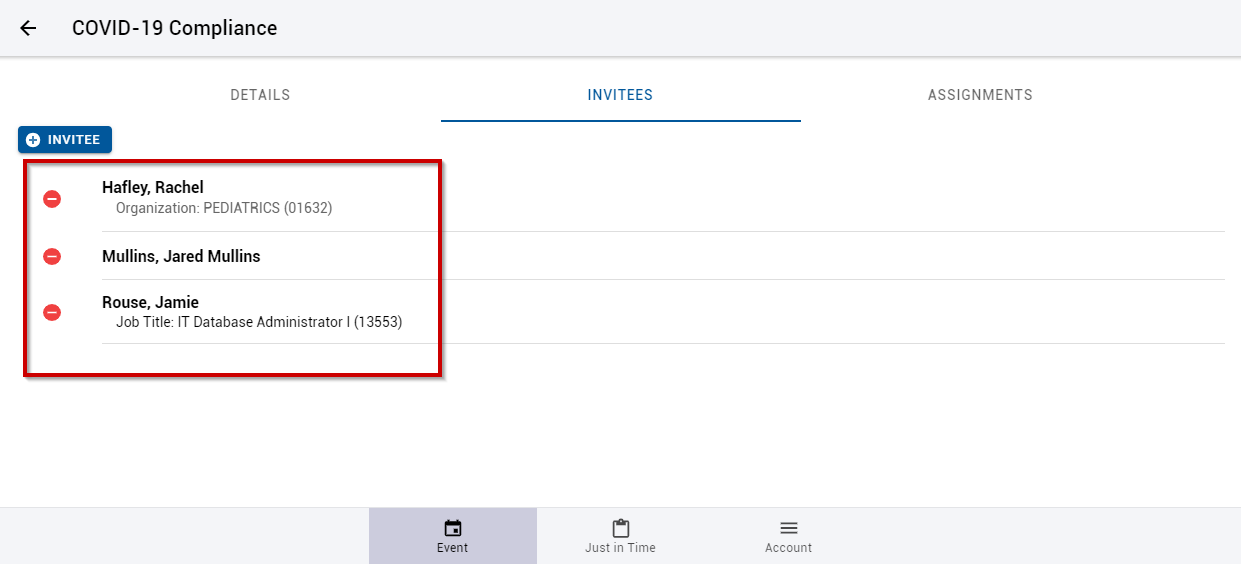
| The Invitees will be listed in the Invitees list. |
|
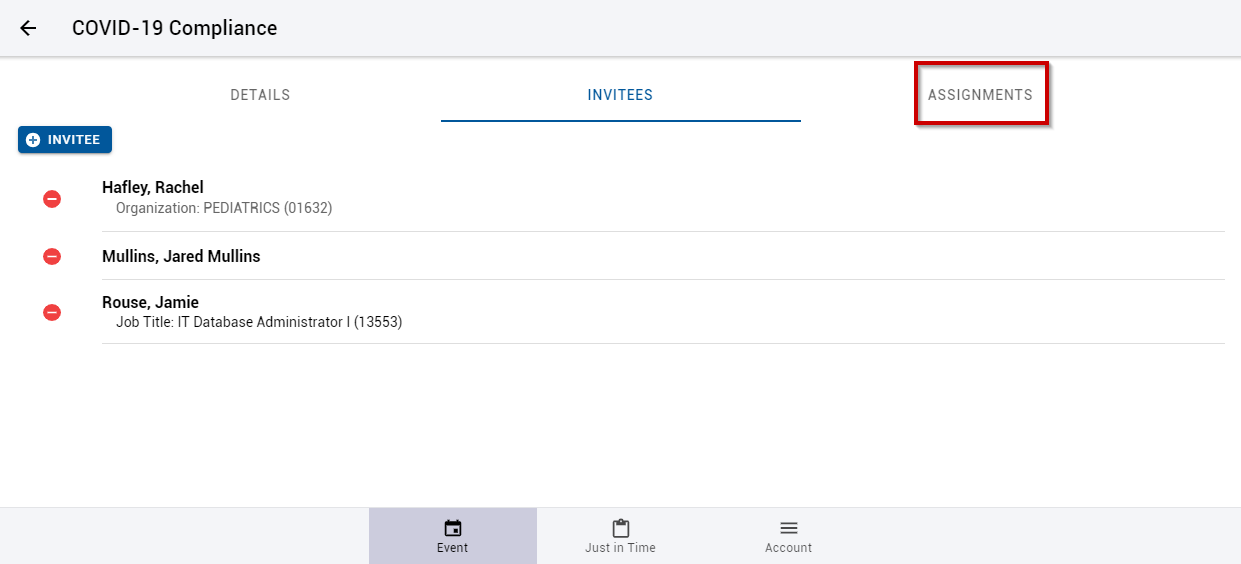
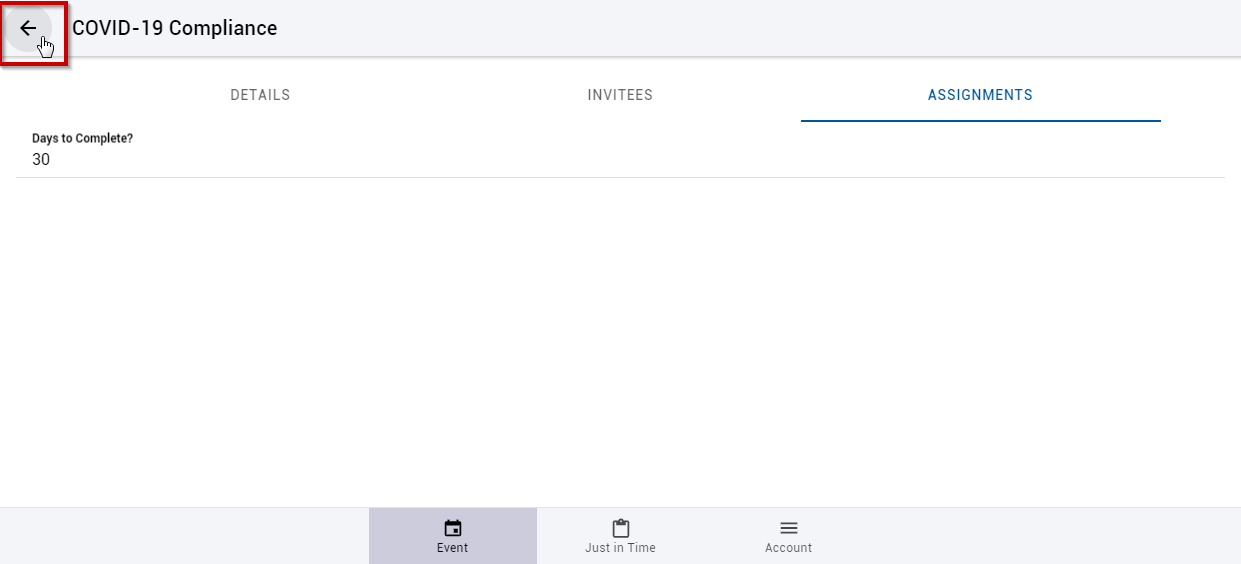
| Select the Assignments section. |
|
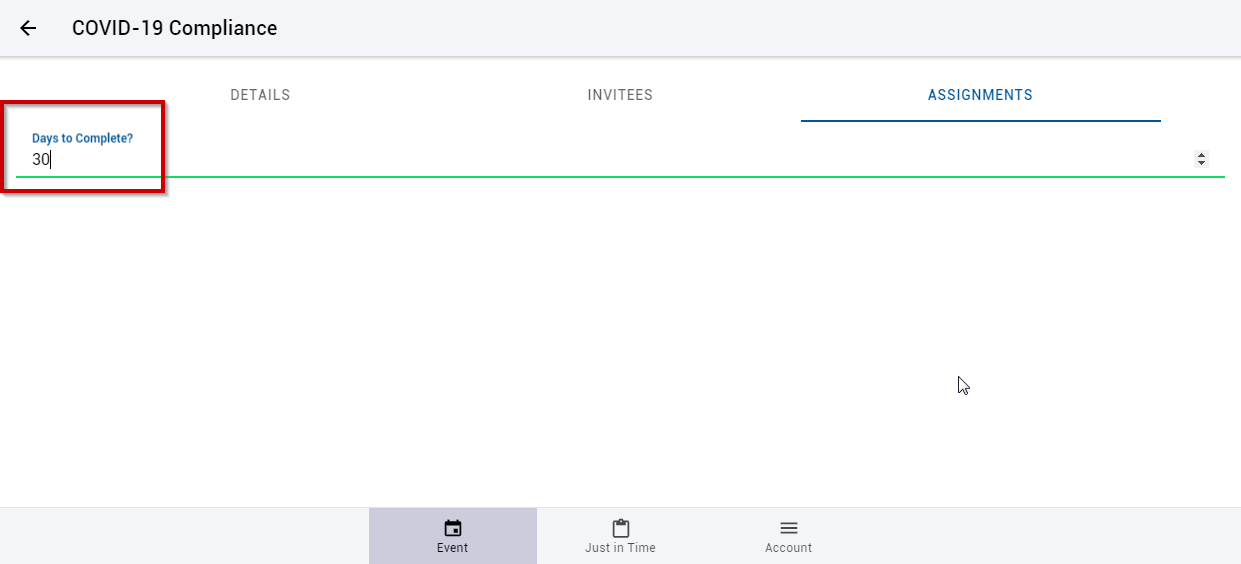
| Enter the amount of days the invitees will have to complete the competency assignments. |
|
| The details are automatically saved. Select to return to the event list. |
|
|
Perform Event Checkoff |
|
| Log in to the TEDS Verification Portal as a Verifier for the Event. |
|
| Select to view the Event page. |
|
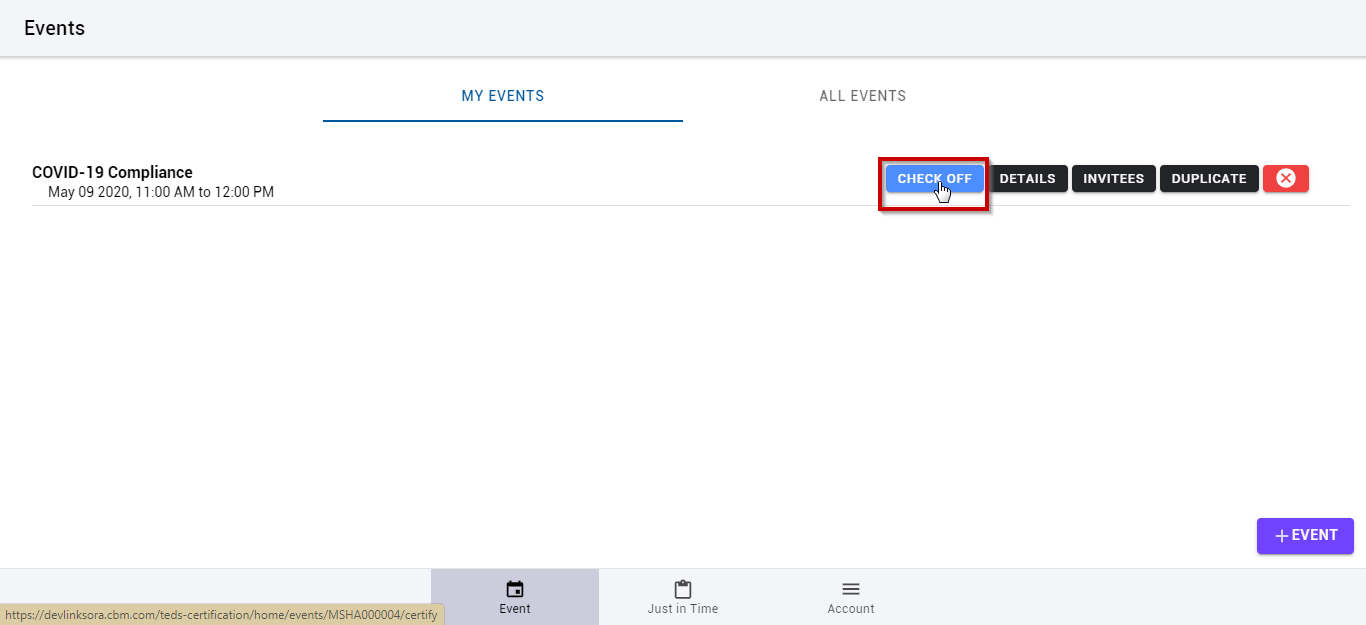
Select the  button. button. |
|
|
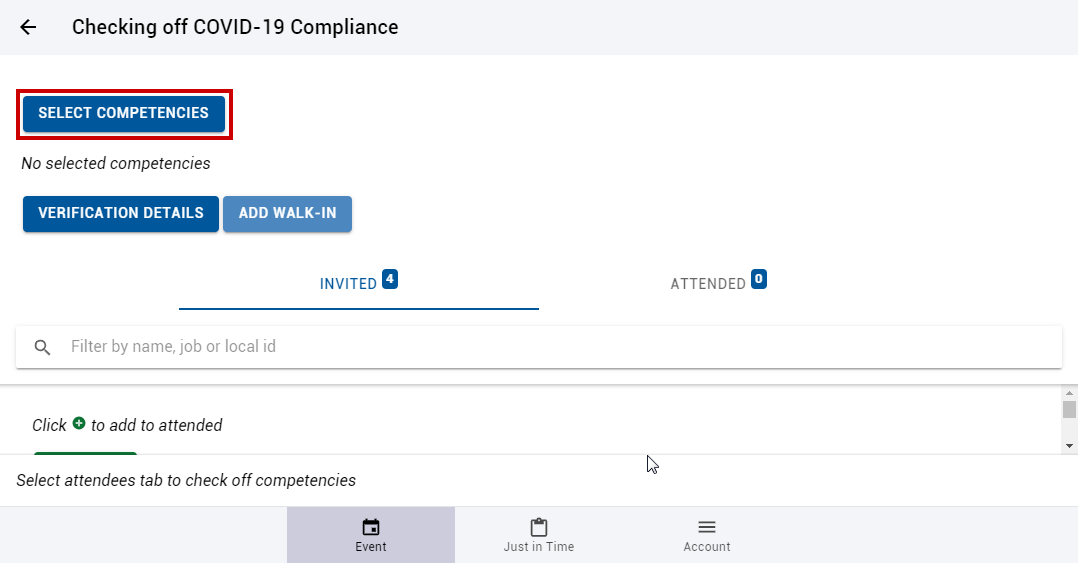
Click the |
|
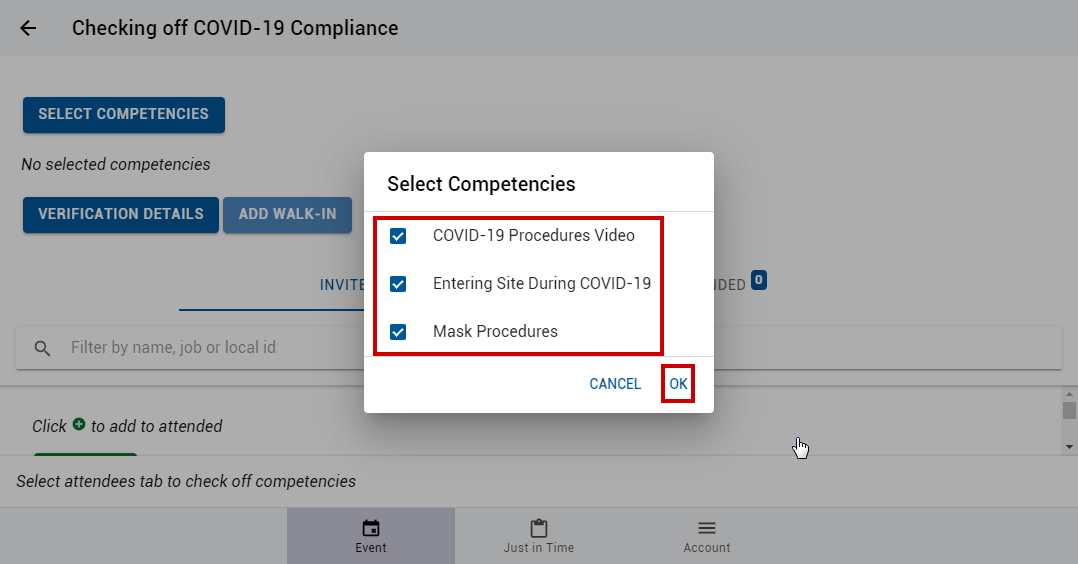
| Select the event competencies that you will be checking off for this event and select the "OK" option. |
|
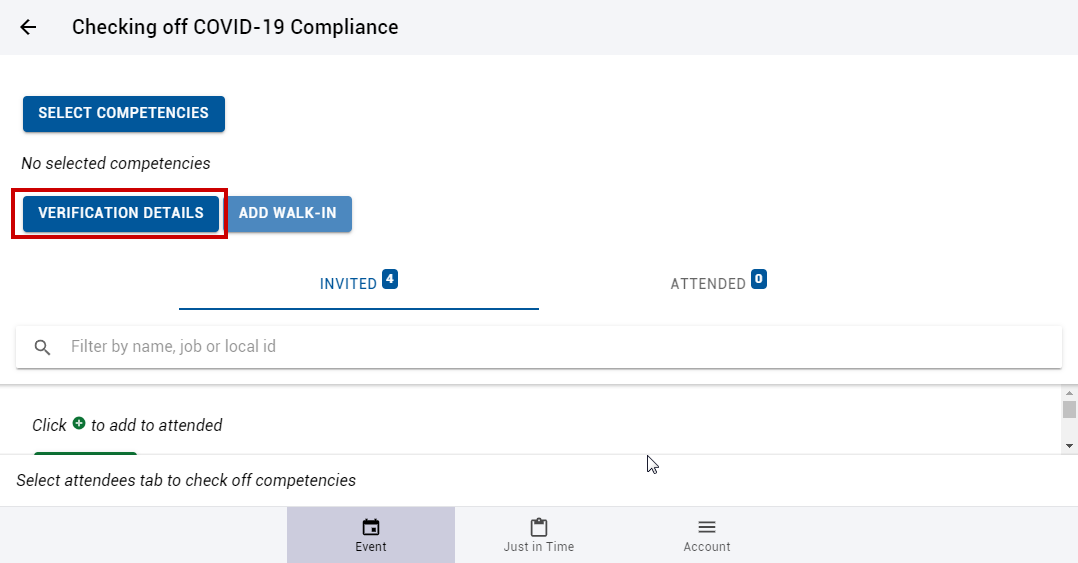
| Select the Verification Details button. |
|
|
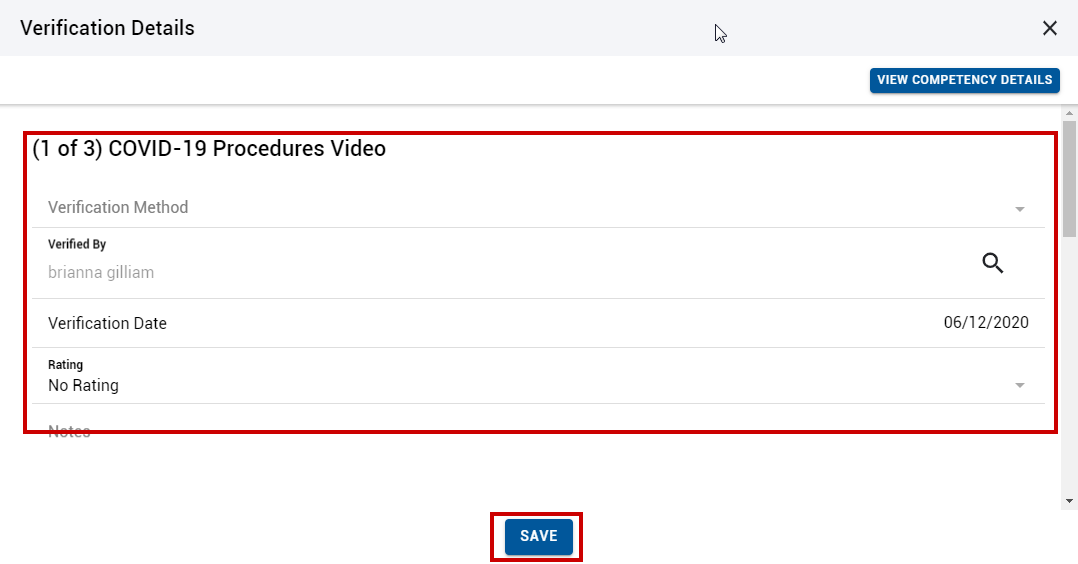
Enter the appropriate verification details for each competency and select save. Note: Competency Details may be viewed by selecting the |
|
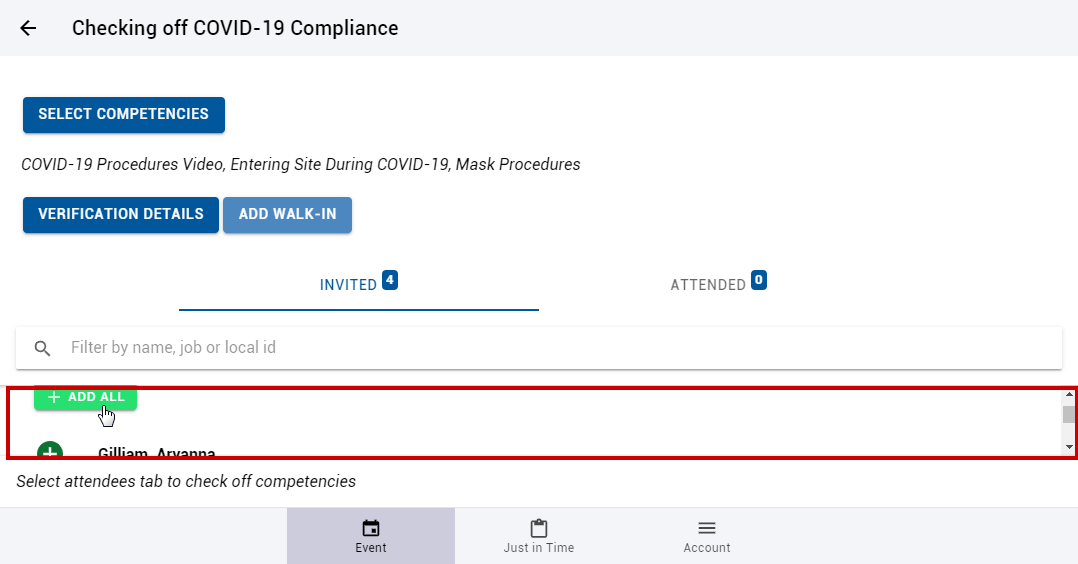
| Select the individuals in attendence from the Invitee list. |
|
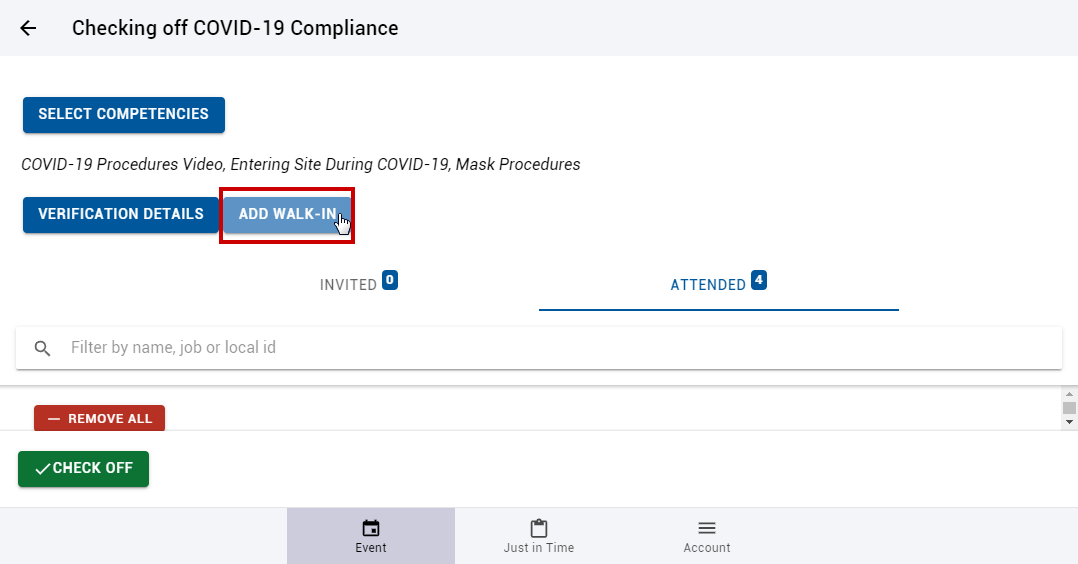
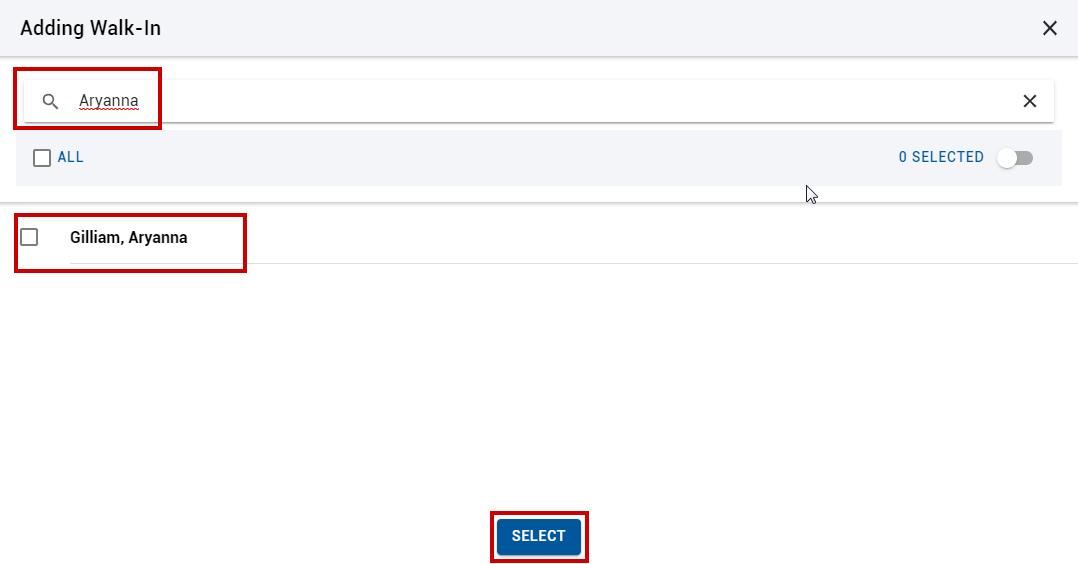
| If someone is in attendance that was not on the list, select the Add Walk-In button. |
|
| Search for and select the individual(s) needed and then click the "Select" button. |
|
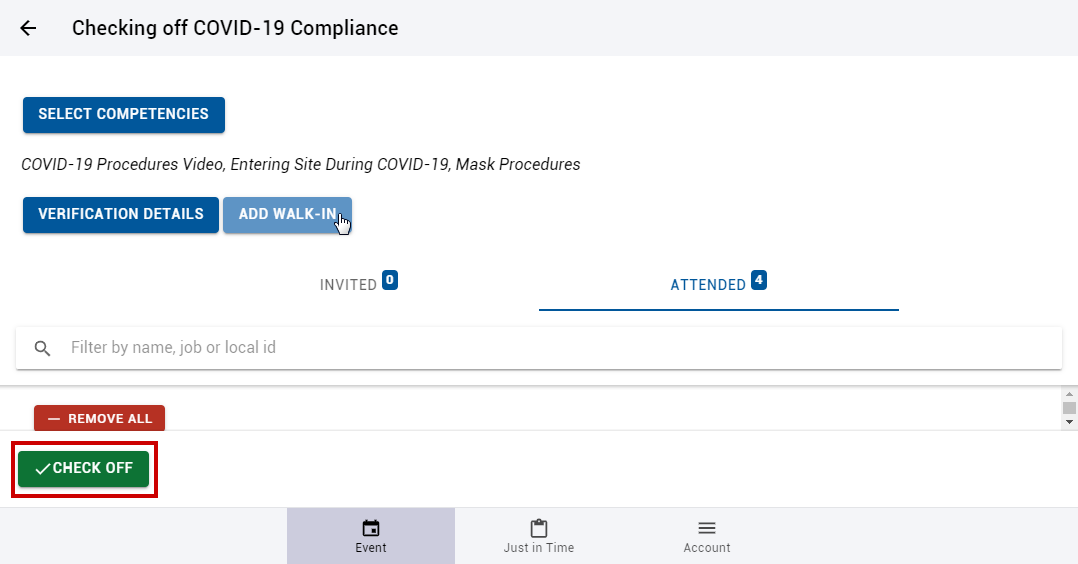
| Select the Check Off button. |
|
|
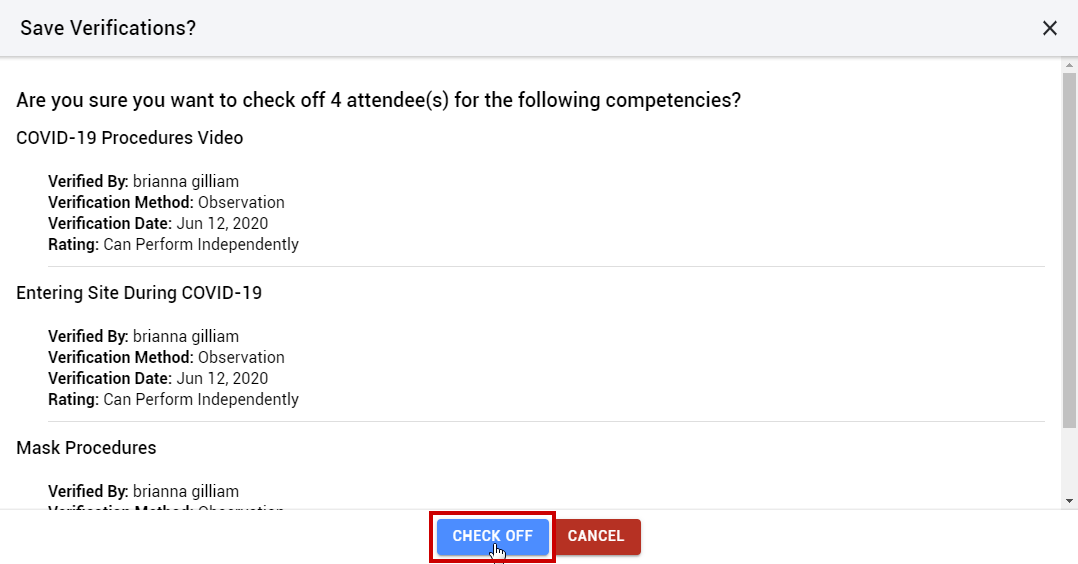
On the verification screen select the "Check Off" button. A message will appear notifying you that the check offs have been completed. |
|
 button.
 button.
Related Guides