Create a Session with a Zoom Meeting
| Privileges | Description |
| Administrative User | A user will need administrative access to TEDS. This is defined on the Login tab of the individual's person details. |
| Create a Session | The Create a Session privilege is a global privilege that is assigned in TEDS Online Administrator. This privilege grants an individual access to define Session details in the Session Catalog. |
|
Instructions |
|
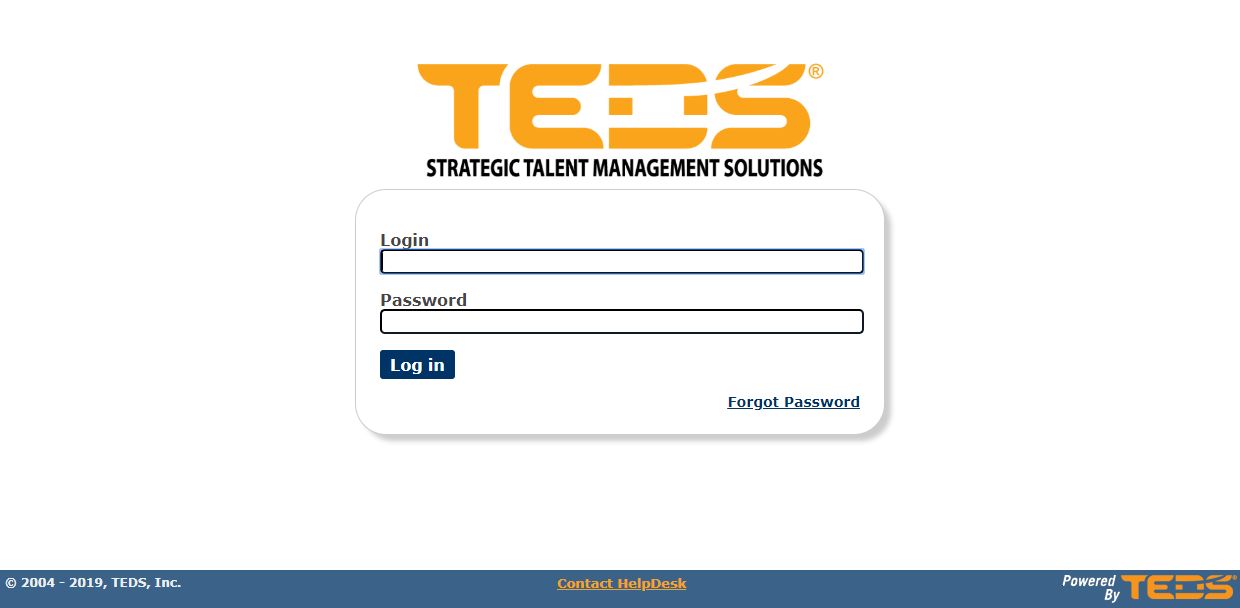
| Log in to TEDS Online Administrator. |
|
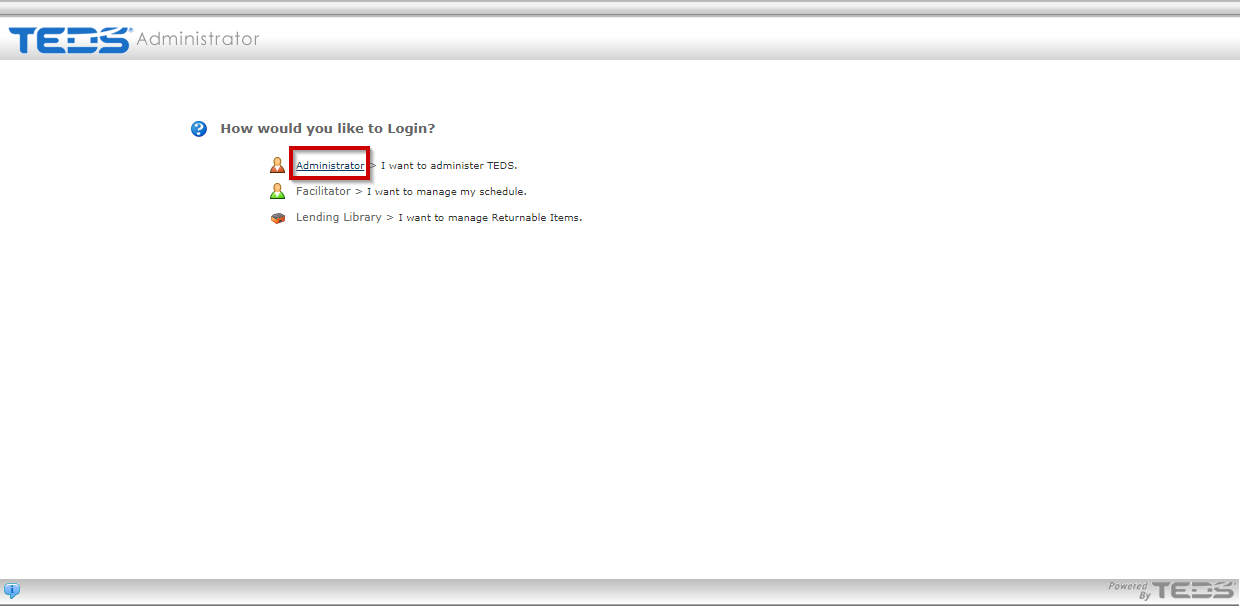
| Access the Administrator option. |
|
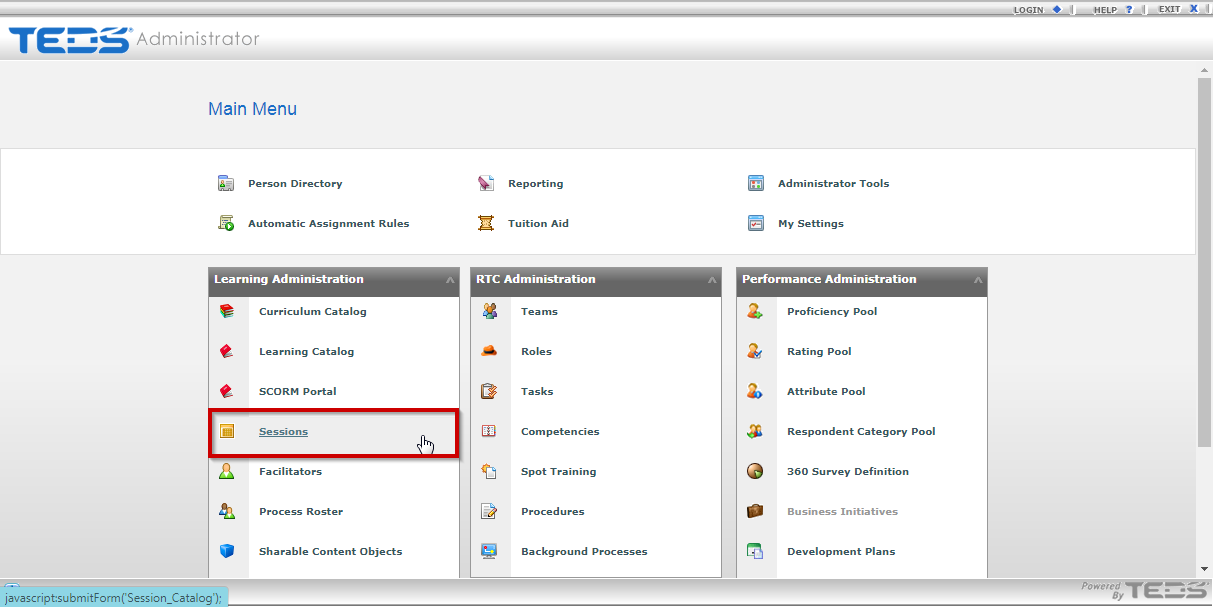
| Select the Session Catalog option. |
|
|
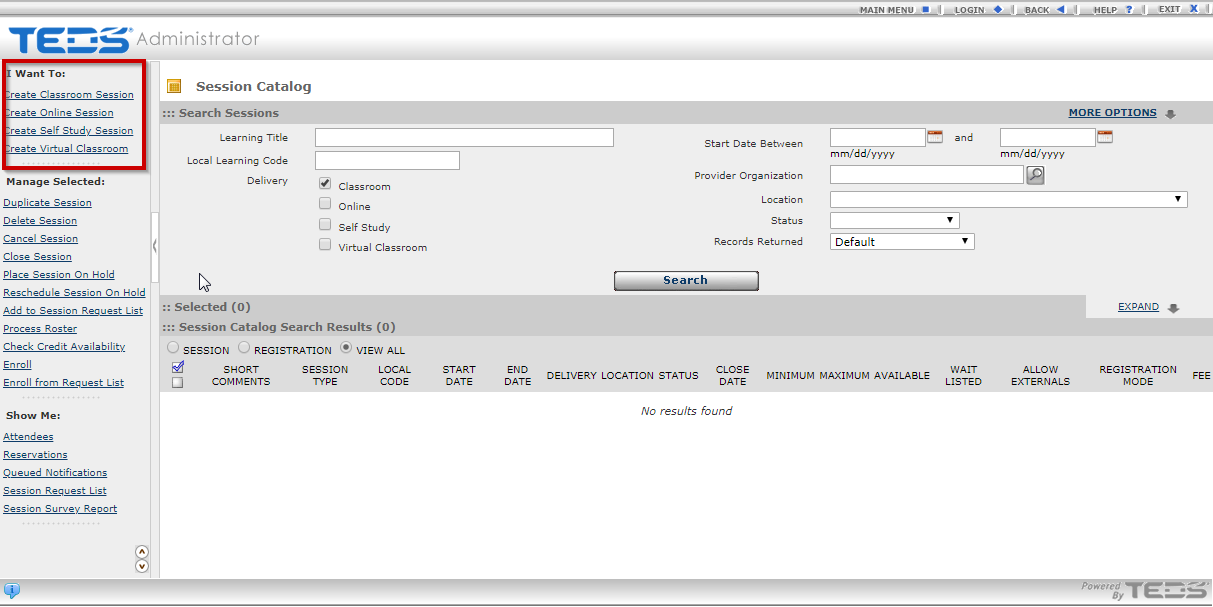
Select the appropriate create session option for the desired learning. Note: Be sure popup blockers are turned off. |
|
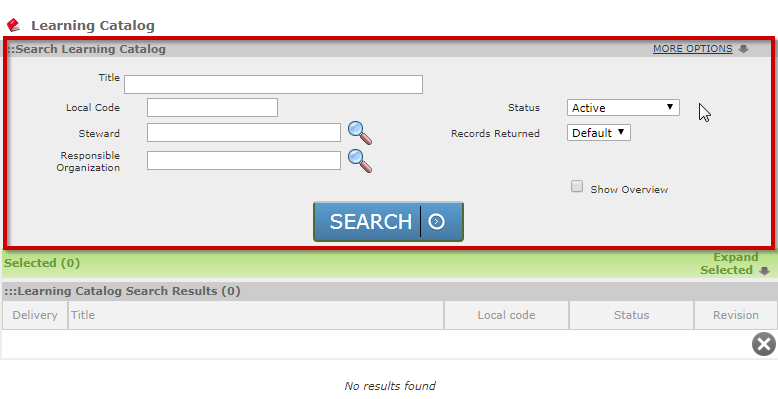
| Search for the desired learning with a delivery method of Virtual Classroom. |
|
|
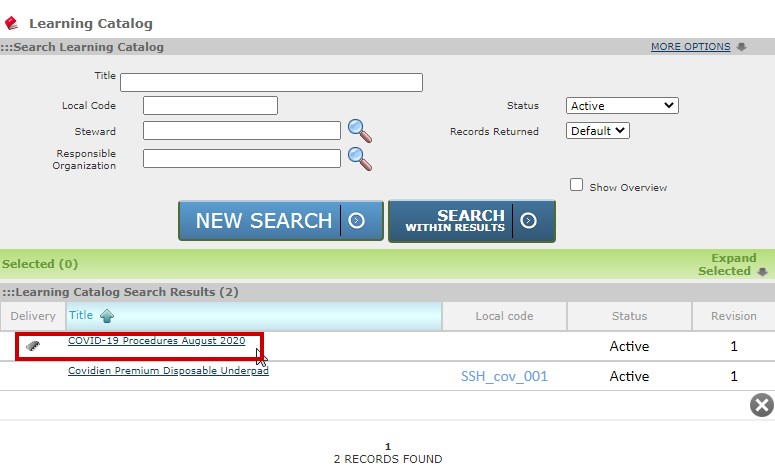
Select the hyperlinked learning title for the appropriate learning. Note: Ensure the selected Learning has a delivery method of Virtual Classroom. This will be designated with a |
|
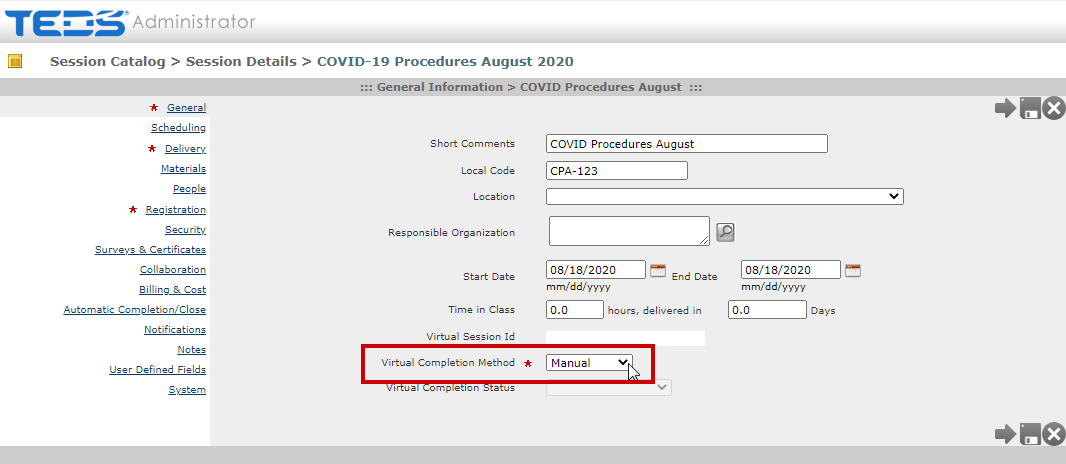
| Select the Virtual Completion Method drop down and select the desired method of completion for this virtual classroom session. |
|
|
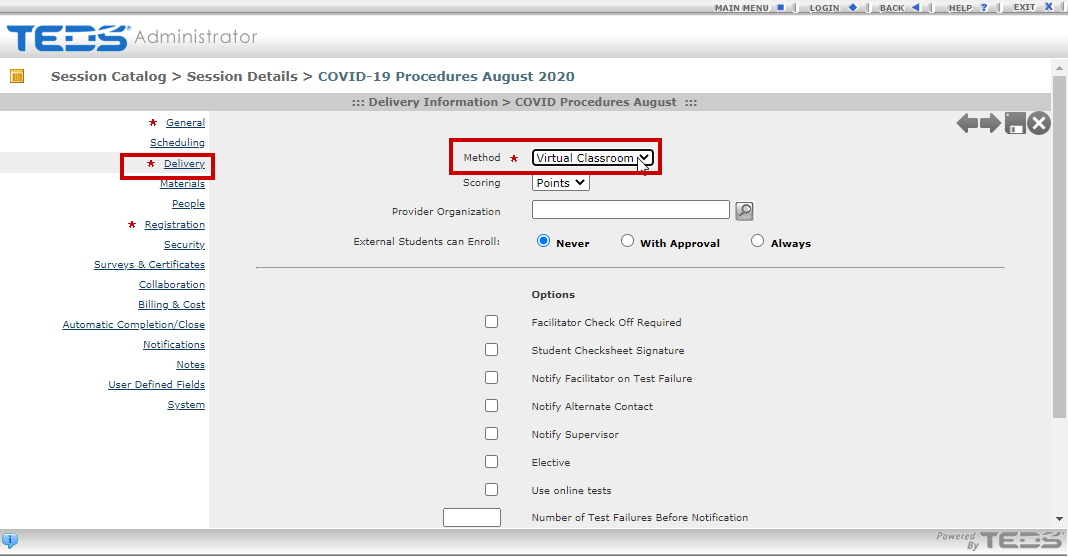
Select Virtual Classroom as the Method on the Delivery tab. |
|
|
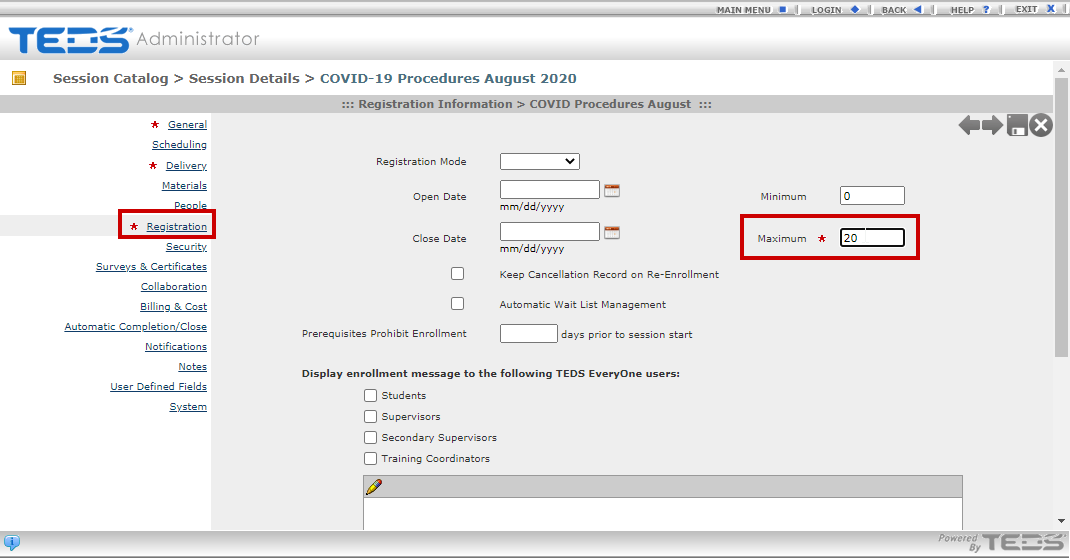
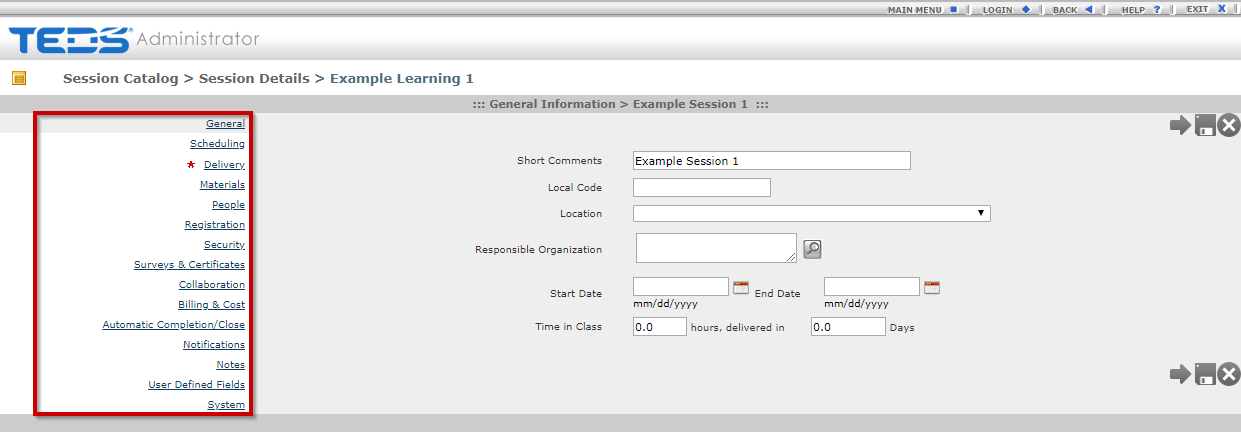
On the Registration tab, complete the maximum field. This will be the maximum number of students who can register to complete this session. Complete all fields on all tabs indicated with a red asterisk. These are fields that are required to be completed for your organization. |
|
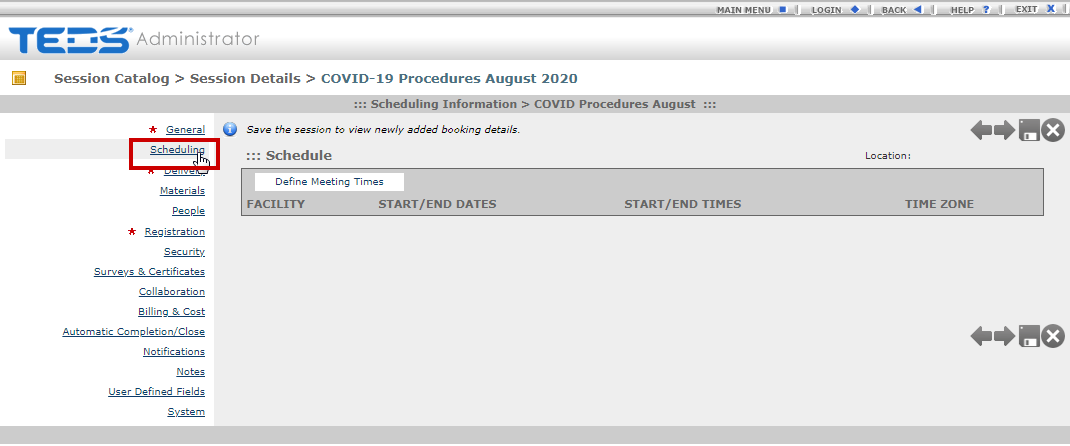
| Access the Scheduling tab. |
|
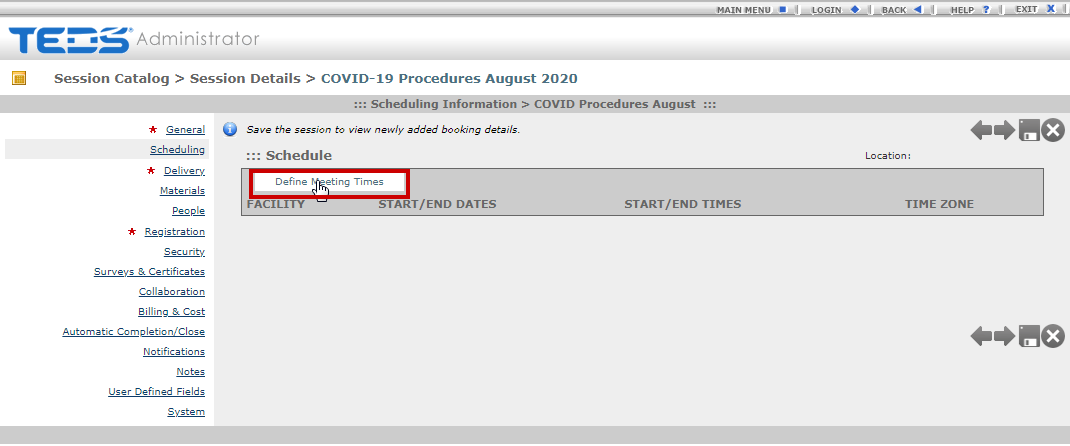
| Select the "Define Meeting Times" button. |
|
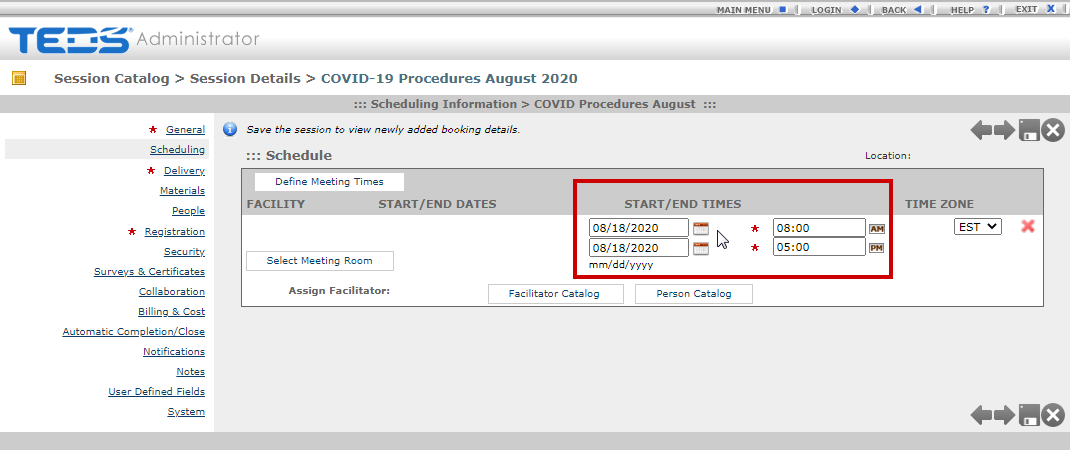
| Define the appropriate start date/time and end date/time. |
|
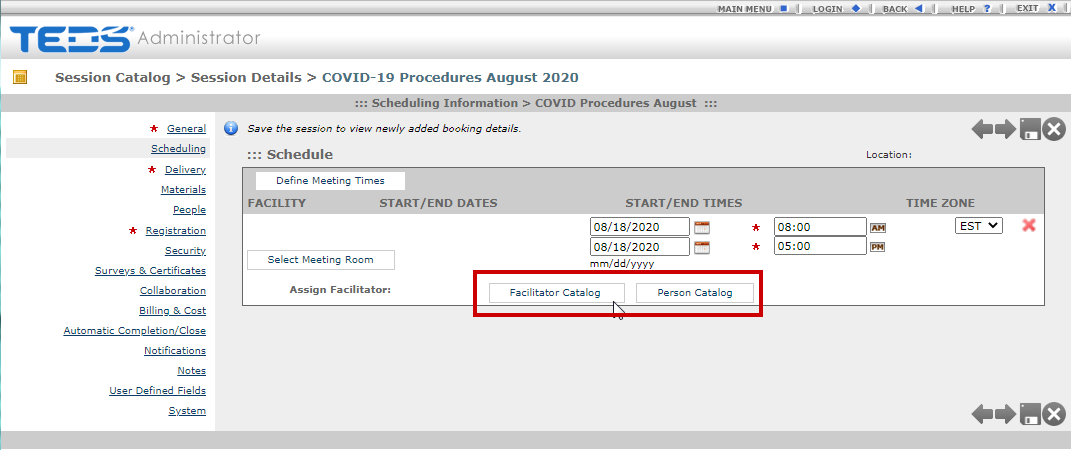
| Select to add a facilitator. This can be done by using Facilitator Catalog (to select an existing facilitator) or the Person Catalog (to select an individual within the TEDS Person Directory). |
|
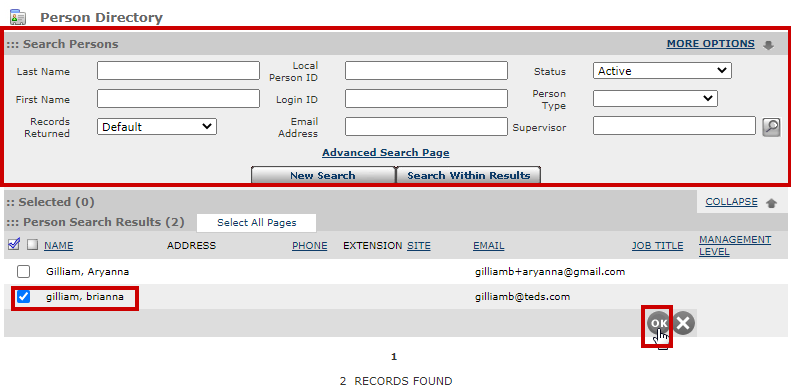
| Search for and select the appropriate individual and then hit the OK button. |
|
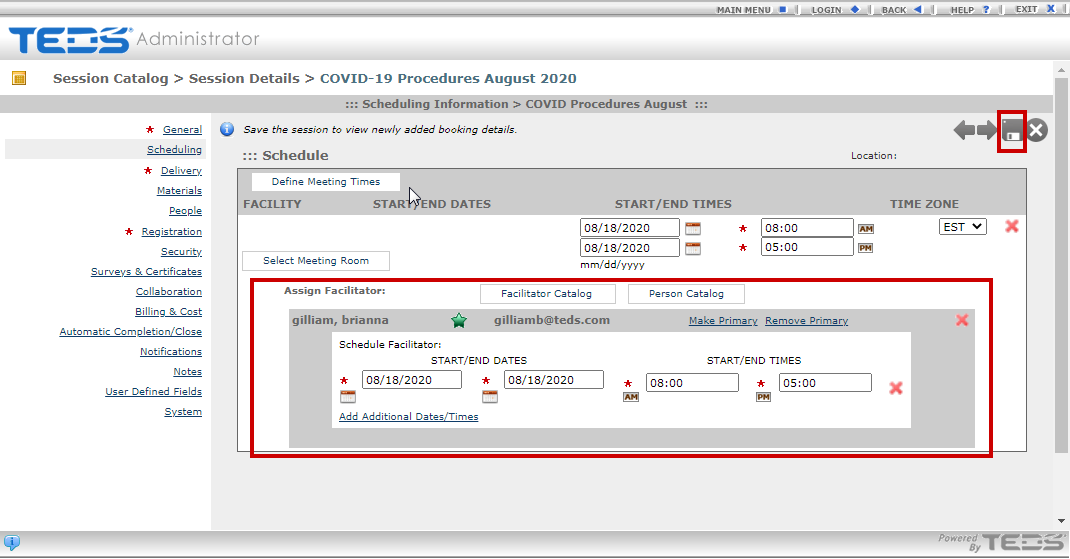
| You will see the Facilitator was added. Select the Save icon. |
|
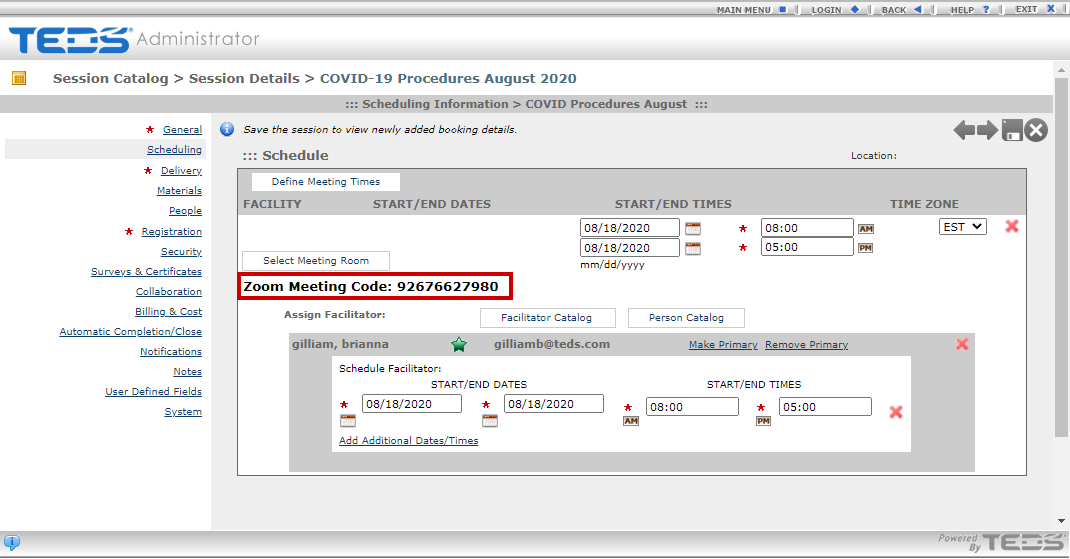
| The session will save giving you a Zoom Meeting Code. |
|
| Complete any other desired information on the various session detail fields. |
|
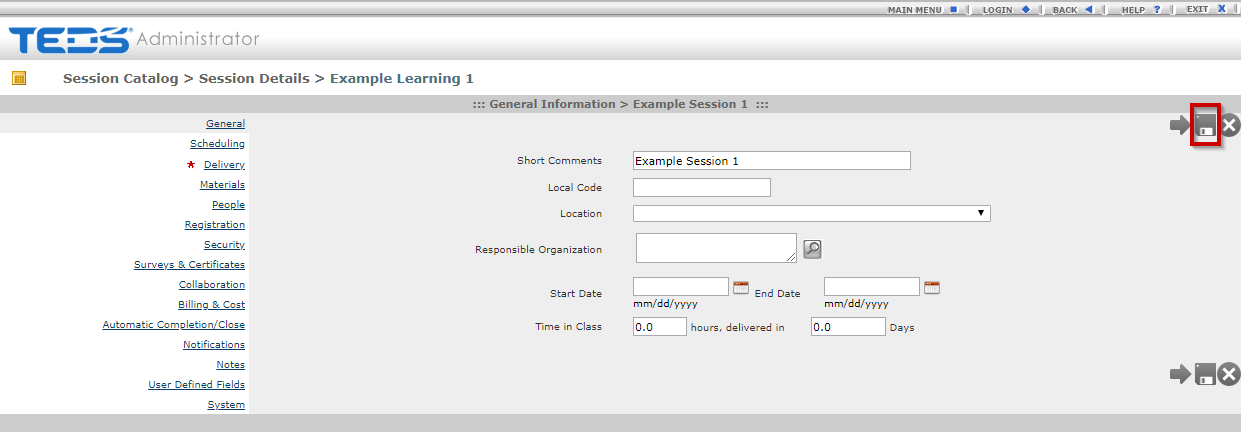
| Save the Session. |
|
 icon.
icon.
Related Guides